 Blog
Moving from TargetScan to Ring Reader: PDF and CSV
If you have scored your targets with TargetScan so far, you can now import them straight into Ring Reader. You export a session in TargetScan as a PDF or CSV and upload the file on the import page. Ring Reader reads every shot from it with its position on the target and its Teiler, the distance from center in hundredths of a millimeter, the way TargetScan measured them, plus discipline and date. Every target in the report becomes a series of its own, and the session stays together as a group. The CSV file works too, but holds neither date nor discipline.
What comes along
For Ring Reader, TargetScan is an import source just like Meyton or DISAG. We read what the app exports, and we do not recompute the shots. Ring Reader determines every shot from the positions in the PDF report.
| PDF report | CSV | |
|---|---|---|
| Position of every shot | yes, from the report | yes |
| Teiler of every shot | yes | computed from the position |
| Ring value and decimal | yes | yes |
| Discipline | from the report | estimated from the ring geometry |
| Date | from the report | the file’s modification date |
| Session group | yes, one series per target | yes, in blocks of ten |
For moving to Ring Reader, the PDF report is the better route.
Step by step: the PDF report
- Export. In TargetScan, open the session and export it as a PDF. That works with the iPhone and the Android export, and Ring Reader knows both layouts.
- Upload. On the capture page tap “Import a file” and pick the PDF file. Ring Reader recognizes the TargetScan report by itself.
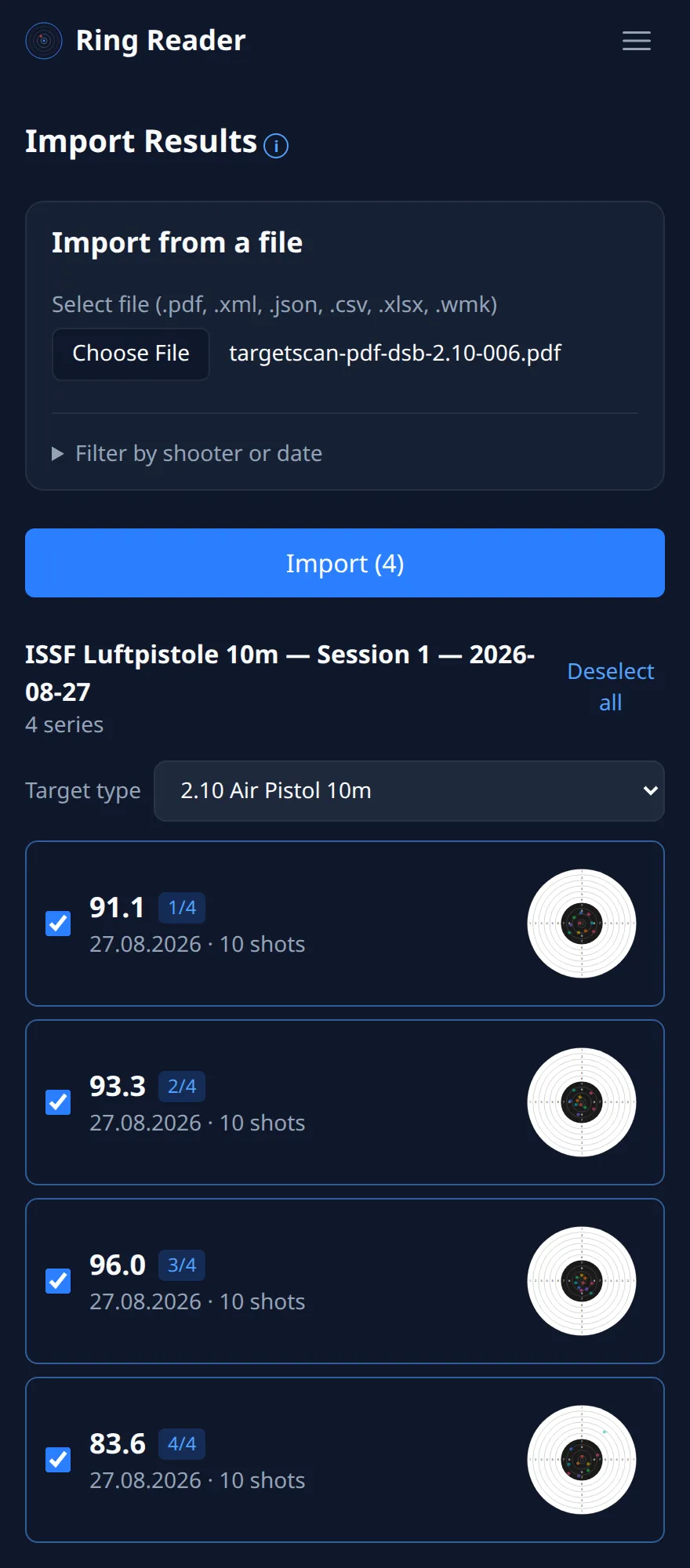
- Check. The preview shows every target in the report as a series with date, score and shot count. Series already imported are grayed out.
- Import. Tick the boxes and tap “Import”. The series are in History, and with Pro they sit as the group “TargetScan” in the “Groups” tab.
On the result page every shot then sits in the right place, with ring value and Teiler.
The 2026 Android version of TargetScan lists the shots of a target sorted by ring value, in the report as in the CSV. A scanned paper target has no firing order, so Ring Reader takes over the order of the report. With “Set order” on the result page you can change it later.
The CSV file
The CSV file from TargetScan holds, per shot, number, scan, ring value and the coordinates in millimeters. Ring Reader reads it directly on the device, without a server. What the file lacks, the app fills in as well as it can: it takes the file’s modification date as the date, estimates the discipline from the ratio of ring values and distances, and through the “Target type” dropdown on the capture page you set it yourself if the estimate is wrong (freehand and supported (Auflage), for example, cannot be told apart). Every ten shots become a series, and several series become a group.
After the import you set date and discipline right for all series at once through multi-select in History, which takes less than a minute.
What is different afterwards
Analytics now takes the newly imported results into account. You see the latest numbers for the score trend, your records, the heat map and so on. New targets, though, you now photograph directly in Ring Reader rather than in TargetScan. See also Scan a Target.
If you upload the same report a second time, Ring Reader recognizes the series and marks them in the preview, so no duplicates are created.
Frequently asked questions
Which targets does the import read?
Air rifle and air pistol reports are what we have checked. Ring Reader recognizes the target from the shot picture in the report, and the result shows decimals under the ISSF rules.
Do I have to export every session on its own?
Yes, one report is one session. For an archive over months that means a number of exports, and in return every session arrives with date and discipline and as its own group.
Do I still need TargetScan afterwards?
Not for the old reports, they are in History. New targets you score in Ring Reader, with the same scoring and with a Teiler for every shot.
Export the first session and upload it.
Try it