 Blog
Blog
Import DISAG results: printout, Rückschau, ShotsApp and JSON
In short: DISAG results reach your training diary by four routes: as a photo of the result printout, as a photo of the Rückschau screen at the range, as screenshots from the ShotsApp, and as a JSON export from the range official. All four deliver decimal scores and Teiler. Every shot at its position comes from the Statistik printout, from the Rückschau, from the ShotsApp and from the JSON. DISAG QR codes are not supported, so you take one of the photos instead.
After the club match the result printout sits in your jacket pocket, and every round but the last is buried in the ShotsApp. A few weeks later you want to know where the eights went, and the sheet is long gone. That is why it pays to import results right away, while you still have them in hand: either from the printout, or the last round from the ShotsApp.
How it works with Meyton ranges is covered in Import Meyton results. This post is about DISAG only.
Four routes compared
For Ring Reader, DISAG is an import source like Meyton or SIUS: we read what the range system puts out. What arrives in your history depends on the route. Every format is listed in the chapter Supported formats.
| Route | What you need | What Ring Reader reads from it | Where in the app |
|---|---|---|---|
| Photo of the printout | Result printout (Statistik, OpticScore or minimal) and phone camera | Decimal score and Teiler of every shot, on the Statistik printout also the position of every shot | New > “Take a photo” |
| Photo of the Rückschau | Rückschau on the range screen or tablet | Rings and Teiler, shot picture with every shot at its position | New > “Take a photo” |
| ShotsApp screenshots | Overview plus one screenshot per series | Rings and Teiler, shot picture with every shot at its position | New > “Take a photo” |
| JSON export | File from the range official | Full shot picture with coordinates and Teiler of every shot | Import page via the “Import a file” button |
| QR code | not supported | nothing | Scanner reports “DISAG QR codes are not supported.” |
The photos go to our server for text recognition. On DISAG Statistik printouts that is not always enough. A notice then offers to run the text recognition on a more capable cloud service. Today that is Mistral OCR from France, hosted in Europe in line with the GDPR. Your data is not stored there or used for anything else.
Photo of the printout
Ring Reader recognizes three DISAG print formats on its own. Only the Statistik printout has coordinates per shot. Afterwards every shot sits at its printed position on the target. From the OpticScore printout and the minimal result sheet you get decimal scores and Teiler, but no coordinates.
On OpticScore printouts the app reads from the print whether it was shot with a pistol or a rifle, so the series lands in the right discipline. If it is still wrong once, change it in the “Details” bar on the result page, and the shots are rescored on the new target.
- On the New page tap “Take a photo” and photograph the whole page with all series. You can also upload existing photos, or send them to Ring Reader straight from your gallery with the share sheet.
- Tap “Process All”. Ring Reader recognizes the DISAG printout by itself. If a photo is ambiguous, the dialog “What’s on this photo?” asks, and you pick “DISAG printout”.
- The app shows the progress while it imports, and afterwards the series are in your history.
If recognition was unsure on a Statistik printout, say because a shot is missing or a printed total does not match the shots, the app offers “Improve precision”, right after the import and later in your history. The photo is then processed once more in the background with a more precise cloud text recognition, so you can switch pages. The results are replaced as soon as they are ready. Shots whose position stays uncertain carry the “approx.” mark in the series. The image is evaluated directly by the cloud service, without being stored there or used to train the AI. The feature is part of Pro. The original photo stays available for it for one week.
On the OpticScore printout and the minimal sheet every shot has its decimal score and its Teiler, but no position on the target. The result page then shows the note “DISAG printout does not contain coordinates” in place of the shot picture, and the heatmap stays off. If you still know where a shot went, open “Place shots” with the pencil. There every shot stands as a dashed ring at its Teiler distance from the center, and you slide it to its position. Ring score and Teiler do not change.
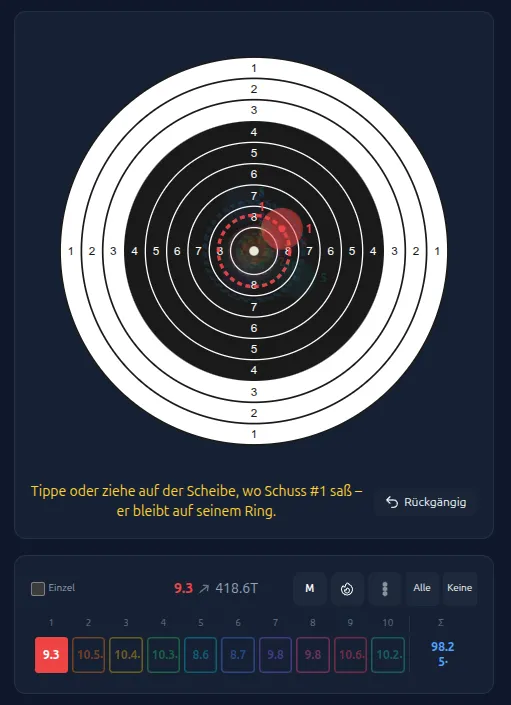
Photo of the Rückschau at the range
At the range you do not need the printout. Open the Rückschau on the range screen, meaning the shot list with shot numbers, ring value and Teiler for every shot. The live hit display with the target face holds no numbers the app could read. The same goes for DISAG tablets.
From the list the app rebuilds the shot picture, every shot gets its position on the target, and heatmap and group size are available. Several photos of the same match are merged into one result.
- Open the Rückschau, on the screen or on the tablet.
- Photograph the whole list, including the header at the top and the totals line at the bottom (New > “Take a photo”). For longer matches take several photos, one per 10-shot series for instance (“Add Photo”).
- Then tap “Process All”. If the app does not recognize the DISAG screens, pick “DISAG screen (Rückschau)” in the dialog.
Photograph the printout as a whole page with the header and all series, paper flat, phone parallel to it, without shadows or glare. In front of the screen hold the phone straight and tilt it slightly if ceiling light is mirrored in the display. The shot list has to be fully in frame, otherwise shots are missing. A downloaded image often has too little resolution, and the app warns you when it does. Take the photo straight from the camera or the gallery. More in the chapter Scan target.
ShotsApp screenshots
If your series end up in the DISAG ShotsApp, you get them out as screenshots. Ring Reader needs the overview with the series list and one screenshot per series. The overview may be an exported score card or a regular screenshot. For the series what counts is the shot list, the table with ring, decimal score and Teiler for every shot. A screenshot of the big target view shows two rows of that list at most. The app sets such images aside during import and tells you so in a notice. The overview alone is not enough for a result either.
If the list does not fit on the screen, a long screenshot helps. On Android tap “Capture more” right after taking the screenshot (some manufacturers call it “Scroll capture”), and on the iPhone an app such as Picsew stitches several screenshots into one tall image. Upload everything together and the app combines the series into individual results and one group. Every shot gets its position on the target, as with the Rückschau. The details are in the chapter Import results.
- In the ShotsApp take a screenshot of the overview.
- Open every series, scroll until the first shot sits at the very top of the screen, and take the screenshot of all 10 shots there, as a long one if needed.
- On the New page use “Take a photo” to pick all screenshots from the gallery together and tap “Process All”. In the dialog the photo type is called “DISAG ShotsApp”.
JSON export from the range official
The most complete data set comes from the JSON export of the DISAG software. It holds the coordinates and the Teiler of every shot, so the shot picture arrives in the app the way the range system measured it. The shot times come along with it. As a shooter you cannot get the file yourself. Ask your range official whether they can give you the export.
- Get the JSON export from the range official onto your phone or computer.
- On the New page tap “Import a file”. That opens the Import page, where you pick the file. You do not need a start number.
- In the preview tick the series and tap “Import”. Series you already imported are greyed out.
DISAG QR code
Ring Reader does not support DISAG QR codes. If you point the app’s scanner at one, it reports “DISAG QR codes are not supported.” Photograph the printout instead or use the ShotsApp screenshots.
Frequently asked questions
Do I need an account?
No. You do not have to register for it. Without Pro the app keeps the ten most recent results locally on your device.
What happens to my photos?
They go to our server for text recognition. If that is not enough on a Statistik printout, you can pick “Improve precision”. Recognition then runs at Mistral OCR in France, hosted in Europe in line with the GDPR, without the image being stored there or used for training. That feature is part of Ring Reader Pro.
Why does my printout show no shot picture?
Coordinates per shot are printed only on the Statistik printout. The OpticScore printout and the minimal result sheet print decimal score and Teiler, so every shot has a distance from the center but no direction. If you want the positions, photograph the Rückschau at the range, import the screenshots from the ShotsApp, or get the JSON export. With those three, every shot sits at its position.
I only have the printout as a PDF, does that work?
Yes, PDF files belong on the Import page. A scanned printout saved as PDF is processed page by page by the photo recognition, and a text PDF of the printout is read directly by the server. More on that in the chapter Import results.
Can I scan the DISAG QR code?
No, Ring Reader does not support DISAG QR codes. The scanner reports “DISAG QR codes are not supported.” Use the photo of the printout, the photo of the Rückschau or the ShotsApp screenshots instead.
Start with the printout from your last club match.
Try it