 Blog
Blog
Import Meyton results: PDF, QR code, photo, XML and CSV
You can import your results from Meyton ranges into your training diary by six different routes: as a PDF file or results link, via the QR code on the range screen, as a photo of the printout, as a photo of the scoring view, as an XML or CSV export, and as a photo of the LogMan printout.
Which one fits depends on what you have in hand and how precise you need the shot positions to be. PDF, QR code and the exports deliver the most, because then every shot sits at its measured position.
Until now it goes like this: the match is shot and the data sits somewhere on the club server. You take a photo of the screen at the range or get a printout with your results. Those then vanish into the gallery on your phone or into a binder. A few weeks later you still remember it was a 385, but no longer where the nines went. That is what Ring Reader is for.
If your club also uses WM-Shot, you can set up the import for all members as well: Import competition results
This post is only about your results and shot pictures from Meyton ranges. DISAG ranges have a post of their own: Import DISAG results.
Six routes compared
For Ring Reader, Meyton is an import source like DISAG or SIUS. The app reads what the range system puts out. Data quality differs by route:
| Route | What you need | Shot positions | Teiler | Shot times | Groups |
|---|---|---|---|---|---|
| PDF file or results link | PDF from the club, by mail or download; link in the club-server wizard (Pro) | measured, every shot | every shot | where available, e.g. for 25 m sport pistol | yes |
| QR code | Range screen or printout with QR code, valid for 7 days only | measured, every shot | every shot | where available, e.g. for 25 m sport pistol | yes |
| Photo of the printout | Result printout and phone camera | partly measured, partly approximate | every shot if the Teiler column is printed, otherwise the best three | where available, e.g. for 25 m sport pistol | yes |
| Photo of the screen | Scoring screen at the range | exact with a Teiler column, otherwise approximate | if shown | no | yes |
| XML or CSV | Export from the range official | measured, every shot | every shot | yes | yes |
| LogMan printout | Log printout and phone camera | measured, every shot | every shot | yes | yes |
All six routes are free. Combining several series into a group automatically is part of Pro; the series themselves land in your history on every plan.
PDF: file from the club or link to the club server
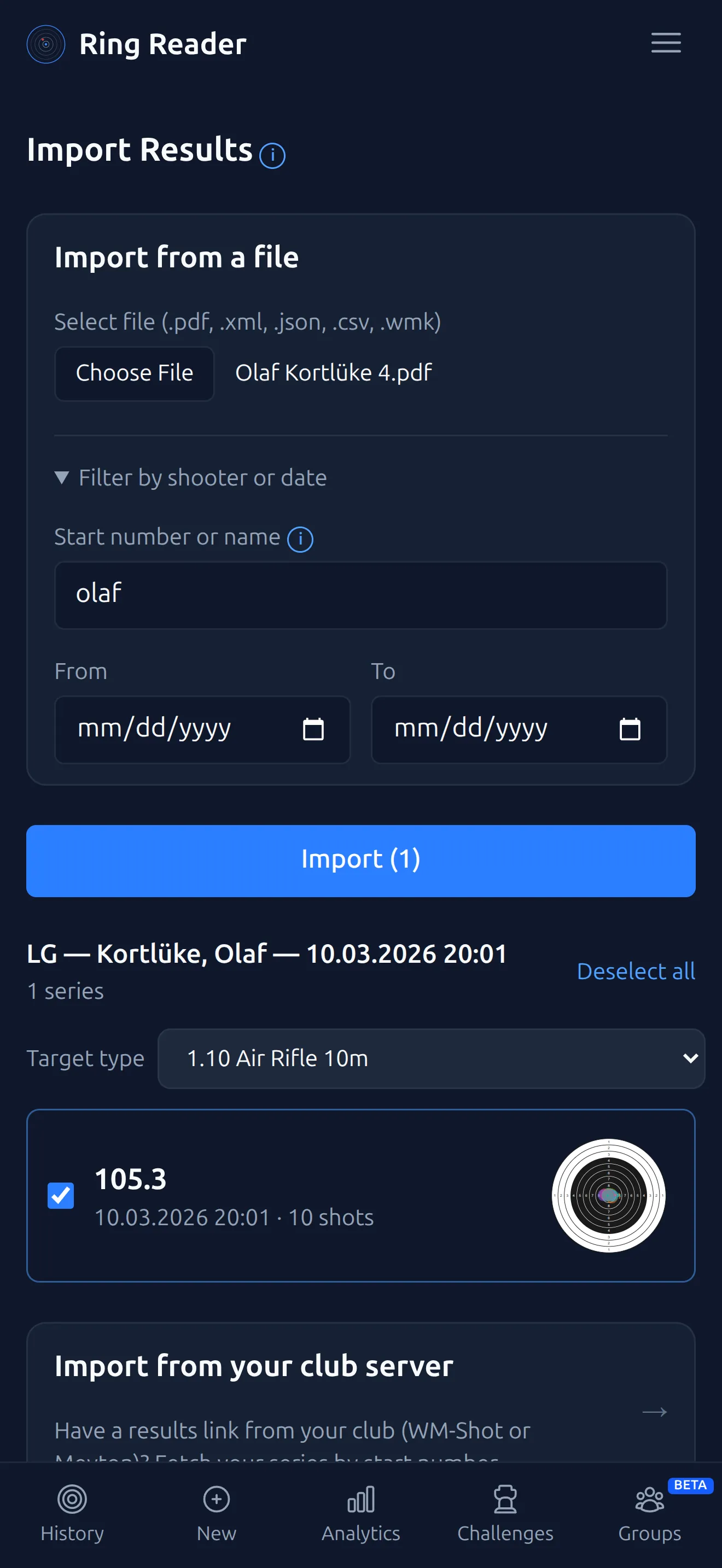
After the match the Meyton system produces a PDF result list. Often the club puts it on its server, sometimes it arrives by mail. On the Capture page tap “Import”, pick the PDF file, and the preview shows every series found with score, date and shot count. If the file holds several shooters, open “Filter by shooter or date” and enter your start number or part of your name. Series you already imported are greyed out and left unticked, so you get no duplicate entries. Tick the others and tap “Import”.
Every shot from a PDF sits where Meyton measured it. Every shot gets its Teiler, and the arrows point in the correct direction of the deviation. A printout spanning several pages is combined into one match. Multi-stage sheets get one group per stage, such as the two scored stages of DSB 2.18 or precision and duel in 2.40; for 25 m sport pistol the time of every shot is imported as well.
If you have a results link from your club instead of the file, use the “Import from your club server” card on the Import page. The wizard walks you through “Server”, “Start number”, “Pick series” and “Done”. Servers you entered once show up under “Saved servers” next time, and you can store a password for protected links. This wizard is part of Pro.
QR code on the range screen
The fastest route is right at the range. The QR code on the range screen or on the printout holds the link to the result PDF. In Ring Reader, tap New > QR code in the navigation menu at the bottom, point the camera at the code, and Ring Reader fetches the PDF in the background and imports your series. Afterwards you can pick “View Results” or “Scan Another”.
Through the QR code you get the same PDF and therefore the same data as with the file import, meaning measured positions and the Teiler of every shot. Meyton keeps the links for only about seven days. After that the app tells you the QR code’s destination is no longer available; if the server itself is unreachable at the moment, the message says exactly that. So scan while you are still at the range.
Photo of the printout
Often all you have is the result printout. Then just photograph that: “Add Photo”, then “Process All”. Ring Reader recognizes the Meyton printout on its own and reads it with text recognition. If a photo is ambiguous, the dialog “What’s on this photo?” asks, and you pick “Meyton printout”.
A printout spanning several pages is combined into one match. Upload the pages together if you can. On smallbore 3x20 printouts each position becomes its own group. Supported-rest (Auflage) printouts for LGA, LPA and KKA are recognized as Auflage, and besides the rings the app takes over the lists of best Teiler and widest shots. Why those lists show a 0.0 so often is explained in Why Meyton prints so many 0.0 Teilers. Group center and group size come from the original Meyton result, for every series and for the whole group.
The printout holds no coordinates. So not every shot gets a measured position; approximate shot positions are marked. You get a Teiler for every shot if your club prints the Teiler column; otherwise the best three per series.
Capture the full page including the header and all series. Lay the paper flat and hold the phone parallel to it. Shadows and glare on the printout get in the way of text recognition. Use the phone camera rather than a screenshot or a downloaded image; the resolution is often too low otherwise, and the app warns you when it is.
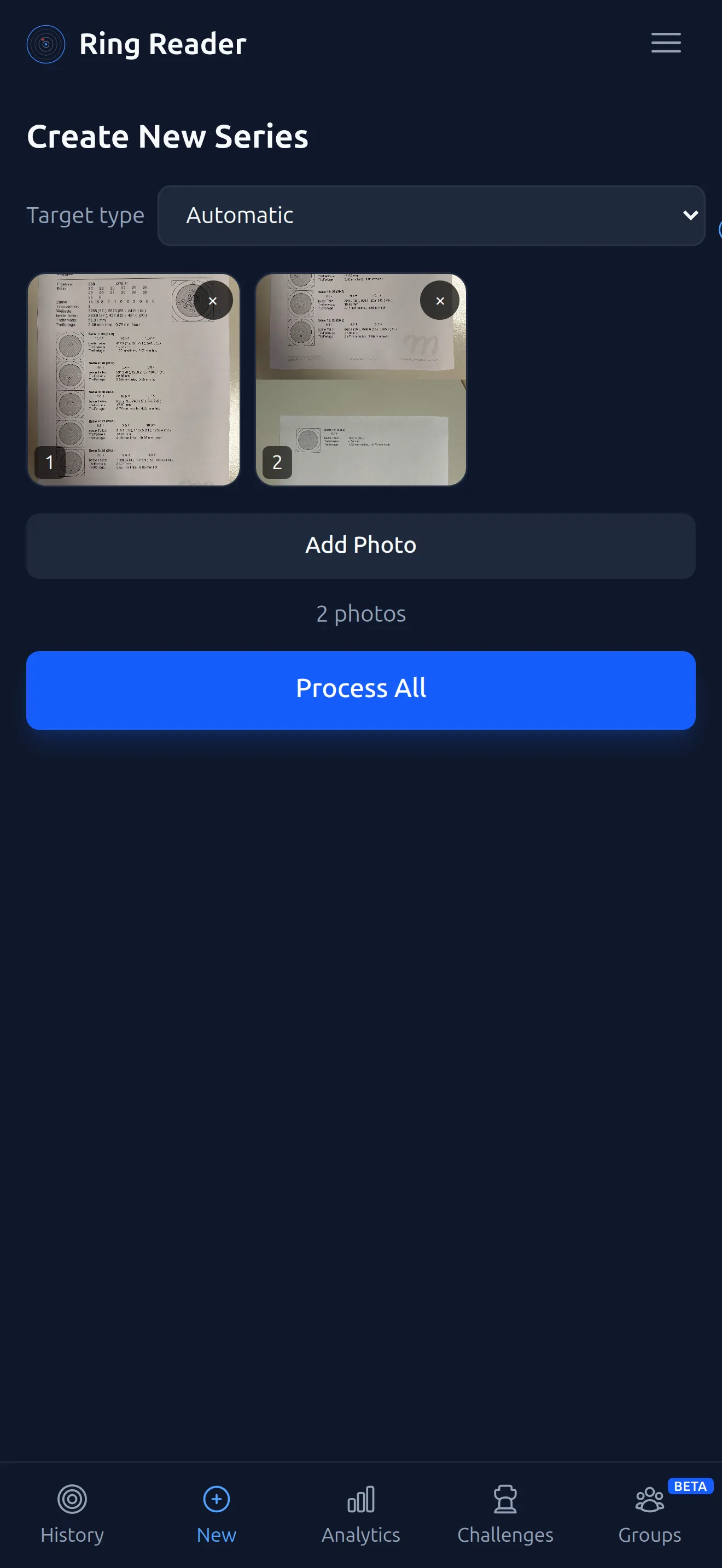
Photo of the scoring screen
The monitor at the range can be photographed too. What we mean is the scoring view with shot number, rings, Teiler and direction arrow per shot, ideally in portrait. The shot picture next to it does not need to be in the photo. The flow is the same as for the printout; in the dialog the photo type is called “Meyton screen (Wertung)”.
If the screen shows only part of the match, say shots 21 to 30 of 30, Ring Reader slots the series into the right place. Upload all photos of a match together and the ten-shot series become one group. LP Auflage results land in the right discipline. With a Teiler column every shot gets its Teiler and its exact position; without one the position stays an estimate.
XML, CSV and LogMan printout
The Meyton ShootMaster exports results as XML; in the Meyton software you find it under “Result list”, item “XML export”. There is also the CSV export. Both contain the measured coordinates, the Teiler of every shot, decimal scores and shot times. Ring Reader reads the file right on your device; it never goes to our server. XML needs no start number, the file holds a single shooter; for a CSV with several shooters, part of your name in the filter field is enough. Ask your range official whether they can give you the export.
The LogMan printout is the system’s printed shot-by-shot log. Photographed, it delivers rings, Teiler, position and shot time for every shot; the photo type is called “Meyton LogMan printout”. What the individual formats deliver beyond that is shown in Supported formats.
Frequently asked questions
Do I need an account?
No. For photos and QR codes Ring Reader silently creates an anonymous device identity so that text recognition can run on our server; you do not have to register for it. The free version keeps the ten most recent results on the device.
Why are shot positions from a photo only approximate?
The printout shows no coordinates. So not every shot gets a measured position; approximate positions are marked as such. If you want every shot exact, use the PDF, the QR code or an export.
Can the club provide the file?
Yes, and that is the most convenient route. The range official can produce XML or CSV exports, put the PDFs on a server or keep the QR codes available at the range. What a club can do is described in the chapter Getting Started for Clubs.
Bring your last Meyton match into your training diary.
Try it