 Blog
Blog
Season start: set up your training diary in just 15 minutes
Summer festival season is over and the new shooting season is around the corner. To get the Ring Reader app ready for it, a quarter of an hour in Settings pays off. You pick your disciplines, add weapons, ammunition and ranges, bring last season into your History through an import and set yourself a goal. Over time this gives you precise analyses of your training, your matches, and of how your performance depends on other factors such as equipment, preparation and mental state.
The steps below follow the way you use the app. The last column tells you where you need the Pro subscription.
| Step | Where | Time | Free/Pro |
|---|---|---|---|
| 1. Pick disciplines and scoring | Settings → “Disciplines & scoring” | 2 min | Free |
| 2. Add weapons, ammunition, locations | Settings → “Equipment” | 3 min | Pro |
| 3. Create your own tags | Settings → “Tags” | 1 min | Free |
| 4. Save one weapon profile | Settings → “Equipment” → “Weapon profiles” | 3 min | Pro |
| 5. Import last season | Import page and capture page | 3 min | Free |
| 6. Set one goal | Analytics → “Records” → “Goals” | 1 min | Free |
| 7. Set the session type on every result | Results page → “Session type” | ongoing | Pro |
| 8. Install the app, turn on push | Banner on the capture page, Settings → “Notifications” | 2 min | Free (Pro for push) |
The free version gives you the disciplines, the tags, every import format (up to 10 series stored locally on your device) plus goals and records. Pro adds the training diary itself: the lists under “Equipment”, the profiles and everything on a result’s details card, meaning session type, weapon, ammunition, location and notes.
Steps 1 to 3: disciplines, equipment, tags
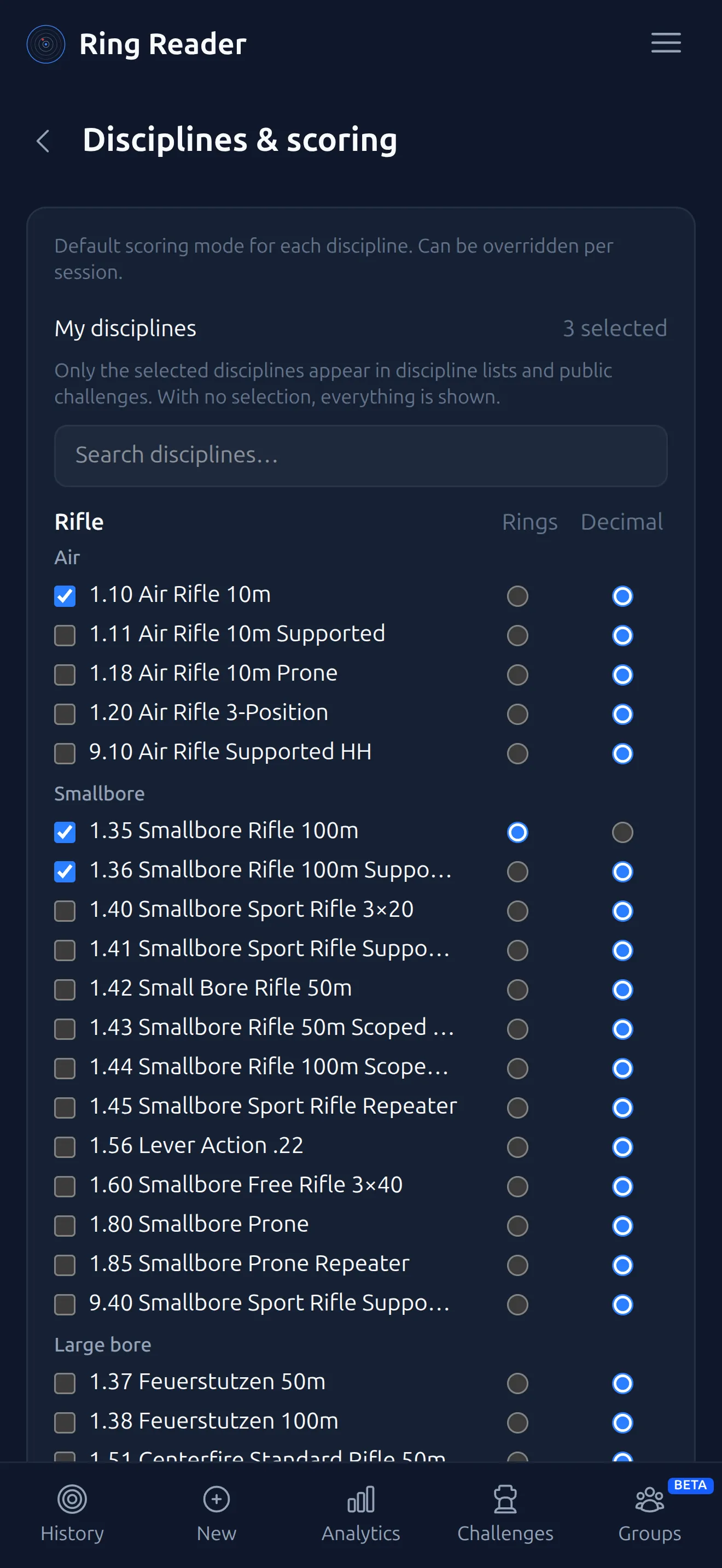
“Disciplines & scoring” lists every discipline code, grouped by rifle, pistol and light, and inside that by air, smallbore and centerfire. Under “My disciplines” check only what you shoot. From then on the discipline lists in the app and the public challenges show that selection only. If an import detects a discipline outside your selection, the result carries the note “Not in your disciplines”. Usually a second look at the detection pays off.
In the same list you set the scoring per discipline, “Rings” or “Decimal”. What counts in your match is written in the match rules; here you only set the default for new series, and you can still switch it individually on any single result.
Next comes “Equipment”. Under “Weapons”, add each weapon on its own with ”+ Add Weapon” and give it the type “Rifle” or “Pistol”. Under “Ammunition” every batch gets its own entry, something like “RWS R50 lot 3042”, so you can see later whether a new batch shoots differently from the old one. Under “Locations” add the ranges you shoot at this season, including the away ranges in the league. Everything listed here shows up as a suggestion in the search field on every result. Details are in the chapter Managing Equipment & Locations.
Back on the main settings page are the tags. Two or three are enough if they answer a question you will ask at the end of the season: “new rear sight”, “match”, “stance change”. You set a tag on a result with one tap and filter by it later in History.
Step 4: weapon profiles
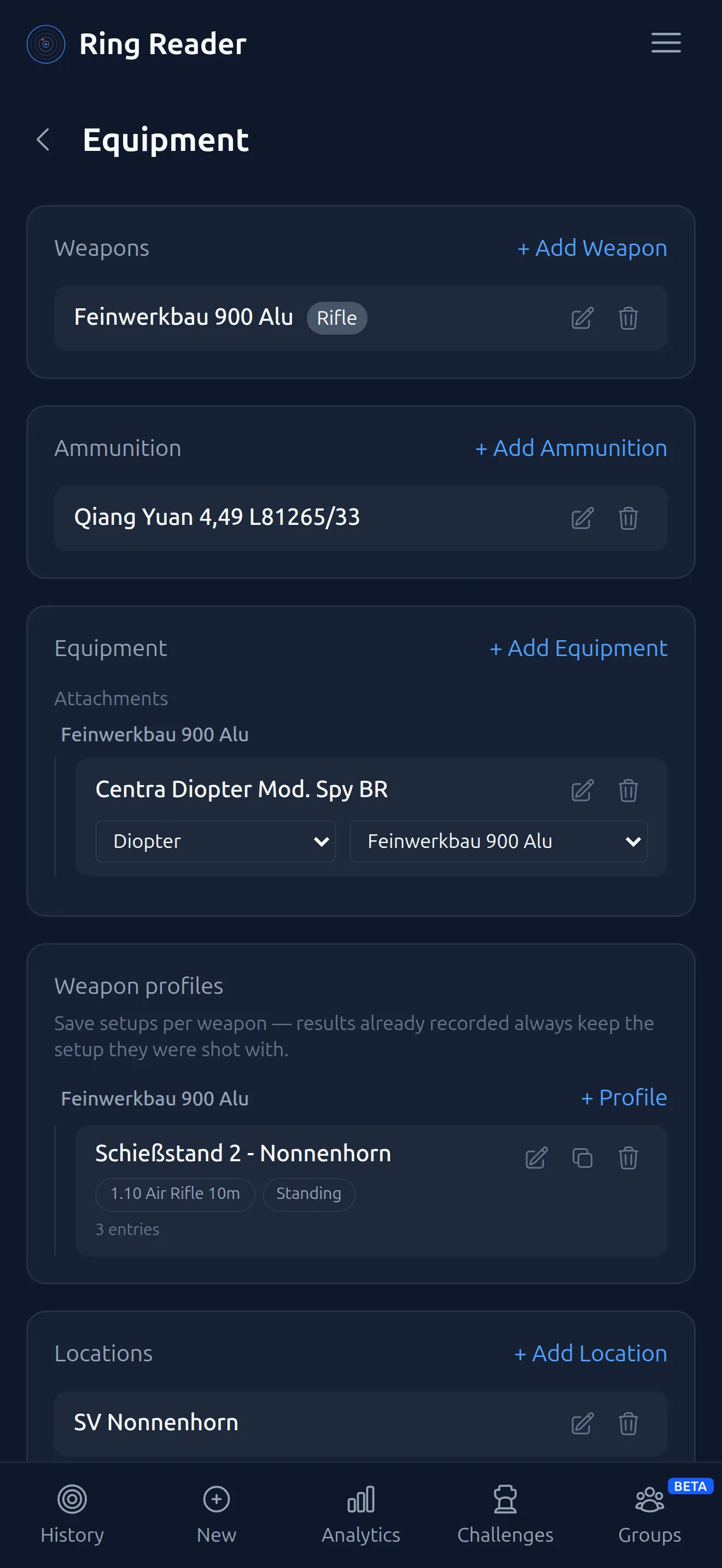
Also under “Equipment”, in the “Weapon profiles” section, every weapon has a ”+ Profile” button. A profile records how the weapon is set up right now: the position (Standing, Kneeling, Prone or Sitting, plus the “Supported” checkbox), the disciplines the setup applies to, and the entries. As entries Ring Reader suggests “Trigger weight”, “Front sight”, “Iris”, “Filter”, “Sight clicks” and “Ammunition”; you can also add items from your equipment list or free text with a value. For the season start, one profile for your main discipline is enough.
When you later pick the weapon on a result, Ring Reader attaches the matching profile by itself, provided exactly one exists for that weapon and discipline. When you adjust the trigger in January, you edit the profile: Ring Reader creates a new version, the fall results keep the old setup, and in spring you compare version against version.
Step 5: import last season
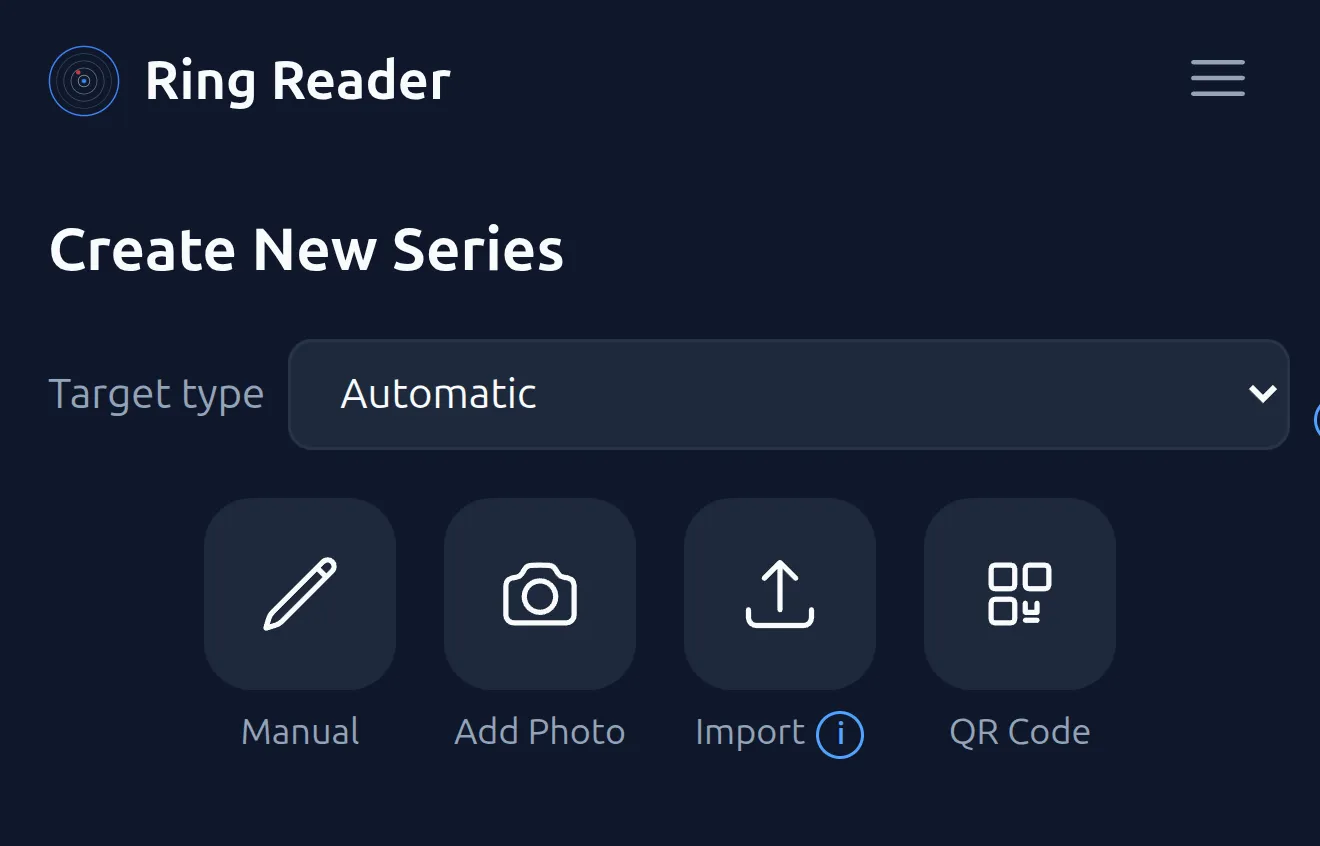
A training diary that starts from zero in September tells you nothing in October. If you have results from last season, now is a good time to bring them into the Ring Reader app. The app can import almost every format. If yours does not work: support@ringreader.app. To import results into the app, tap “New” in the bottom menu.
- Your Excel spreadsheet. On the Import page, tap “Import from spreadsheet”. The wizard walks through “Upload”, “Sheets”, “Mapping”, “Preview” and “Done”. Columns like date, total, weapon, location or “Shot 1” through “Shot 10” are recognized by their header; the rest you assign by hand under “Map columns”. Which headers it knows is listed in the chapter Columns for the spreadsheet import.
- Old printouts. Meyton, DISAG, SKAS or Intarso sheets from the folder are photographed with “Add Photo” on the capture page, exactly like a target strip. Ring Reader detects the format on its own. You can also send existing photos from your gallery straight to Ring Reader.
- Match files from the club. WM-Shot files (.wmk) and Meyton PDFs from league matches go in on the Import page: upload, enter your start number, pick your series. The walkthrough is in Importing club results, the format list in the chapter Import results.
Whatever is already in the app shows up grayed out in the import and is not selected. That keeps duplicates out.
Step 6: set goals
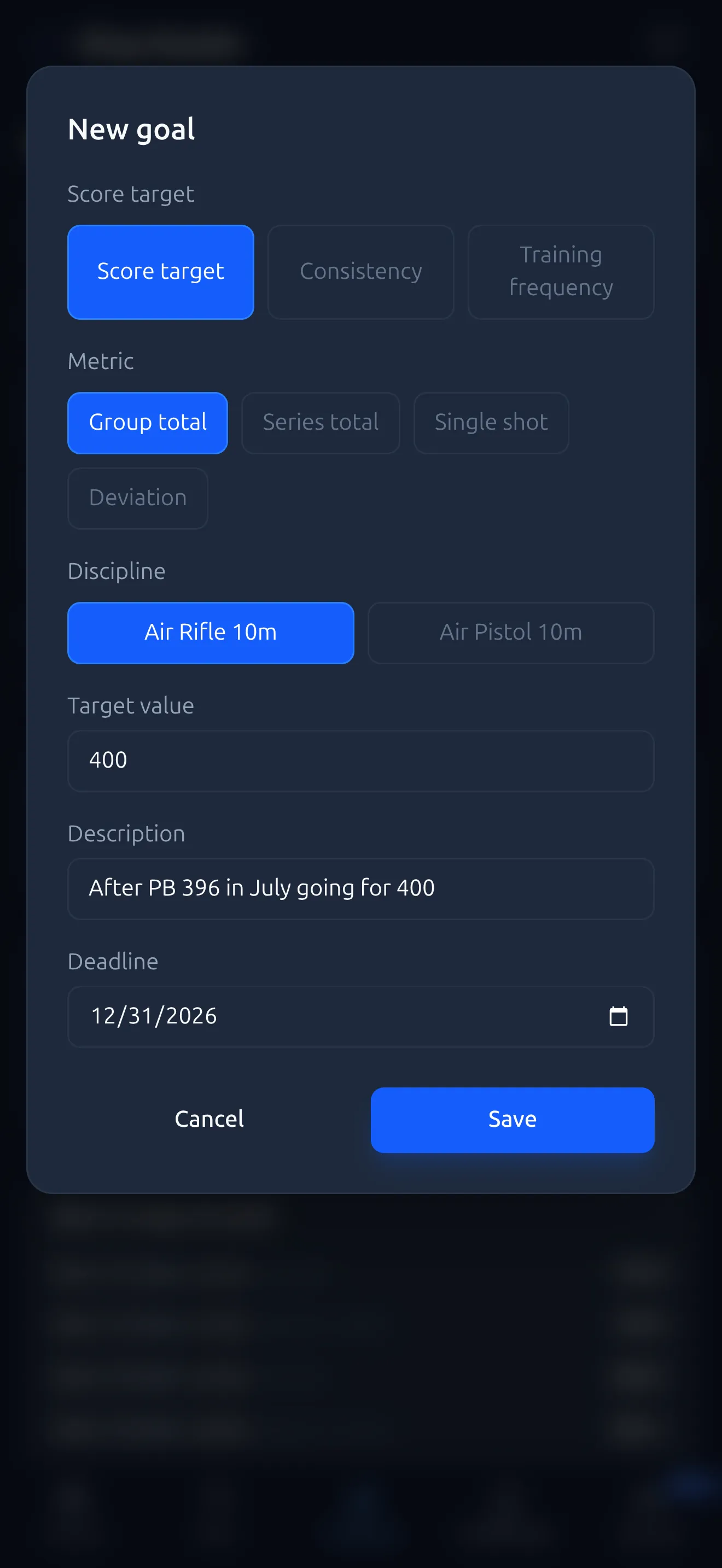
In Analytics choose “Records” as the chart type and find “Goals” below. With ”+ New goal” you set the type: “Score target” with a metric (group total, series total, single shot or deviation), “Consistency” or “Training frequency” per week, month or year. Add a “Target value” and a “Deadline”. Ring Reader works out from your results whether you are “On track” or “Behind pace” and names a forecast date. One goal for the season is enough, say a series total by the last league match. How a goal turns into a training plan is covered in the chapter Training Planning.
Step 7: set the session type on results
Unlike the others, the seventh step repeats with every result. In the details card on the results page sits “Session type” with the buttons Training, Match, Dry Fire and Sighting. A second tap on the active button clears the choice again. This pays off because the Insights (Pro) under “Training vs. competition” later work out by how many rings per 10 shots your training and match series differ. If you forgot it for a while, History helps: long-press a card, select more, and set the type for all of them at once with “Edit”.
Step 8: install the app and allow push notifications
After the first session, the capture page shows the banner “Install Ring Reader”. On Android tap “Install”; on iPhone go through the share button to “Add to Home Screen”. The installed app starts faster, and you can share target photos straight from your gallery to Ring Reader. If you take part in challenges, turn on “Push alerts for challenge rank changes” under “Notifications” in Settings (Pro); on iPhone this only works after installing to the Home Screen. More in the chapter Install the app.
Frequently asked questions
Do I have to set up everything at once?
No. Each step stands on its own, and none of them is a requirement for recording results. Whatever you skip today you can add later: weapon, location and session type can be set in History for many results at once, and a profile can be attached to a result afterwards.
What happens to results without a weapon or location?
They are stored and scored like any other. They are only missing where results are filtered or compared by weapon or location: in History, in Analytics and in the “Conditions” card of the Insights. There Ring Reader asks you to assign locations and ammunition to your series. Adding them later works through bulk editing in History.
Can I change disciplines later?
Yes, both. The selection under “My disciplines” can be changed any time; it only controls what appears in lists. The discipline of a single result you change on the results page or through bulk editing. Ring Reader then re-scores the series: measured shots stay where they are but receive the ring value of the new target face, estimated positions are rescaled onto the new rings, and the total is recomputed.
Take the quarter of an hour before the first league match comes up.
Open Ring Reader