 Guide
Guide Connect Ring Reader + AI Pro
This feature requires Pro.
You can connect Ring Reader to an AI assistant such as Claude or ChatGPT and discuss your training right in the chat. The AI reads your series, shot positions, Teiler, notes and equipment and helps you spot patterns — for example whether you consistently scatter to the right, or whether your group drifts apart over the course of a series. The AI supplies the expertise; Ring Reader supplies the accurate data and its meaning.
A question to the AI then looks like this, for example:
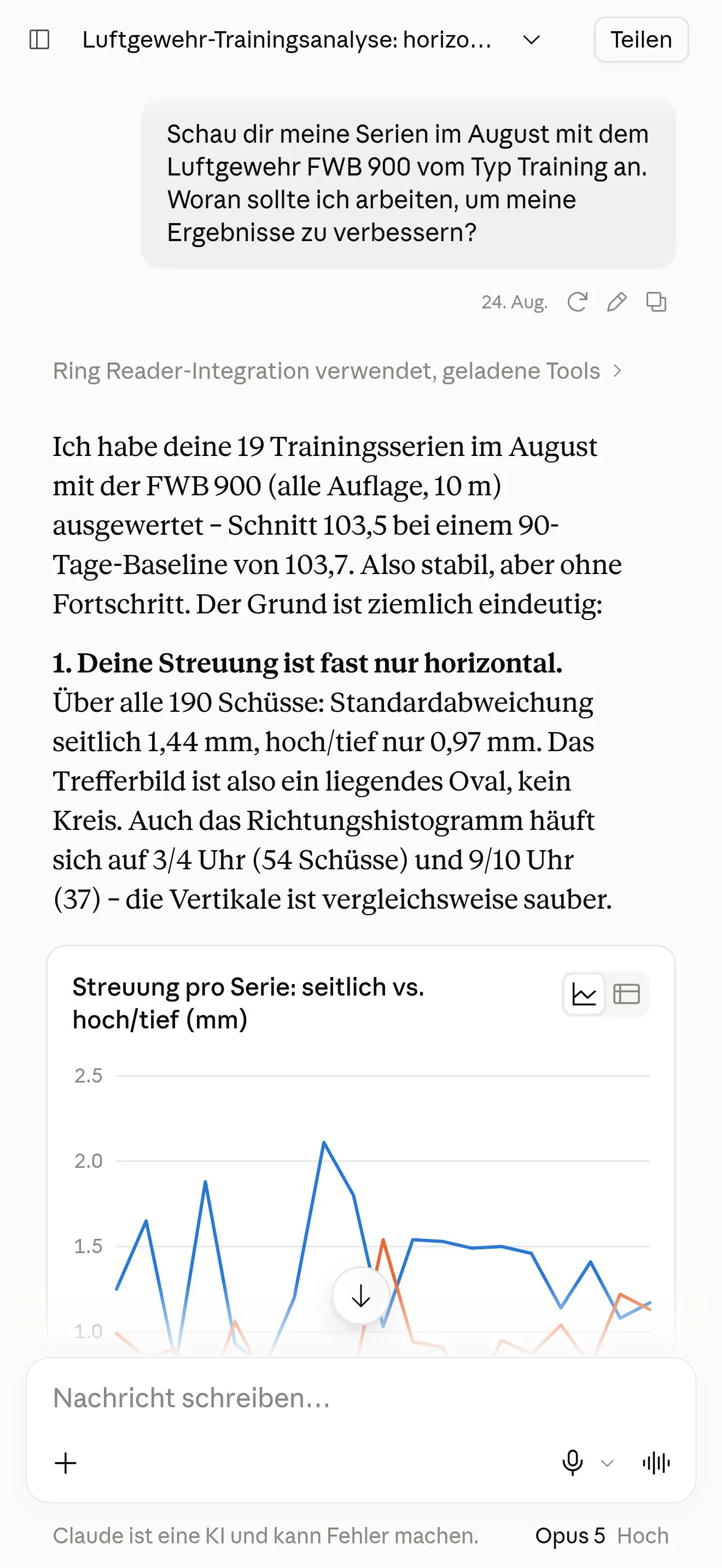
Your AI coach then answers with a detailed analysis and the areas you could work on:
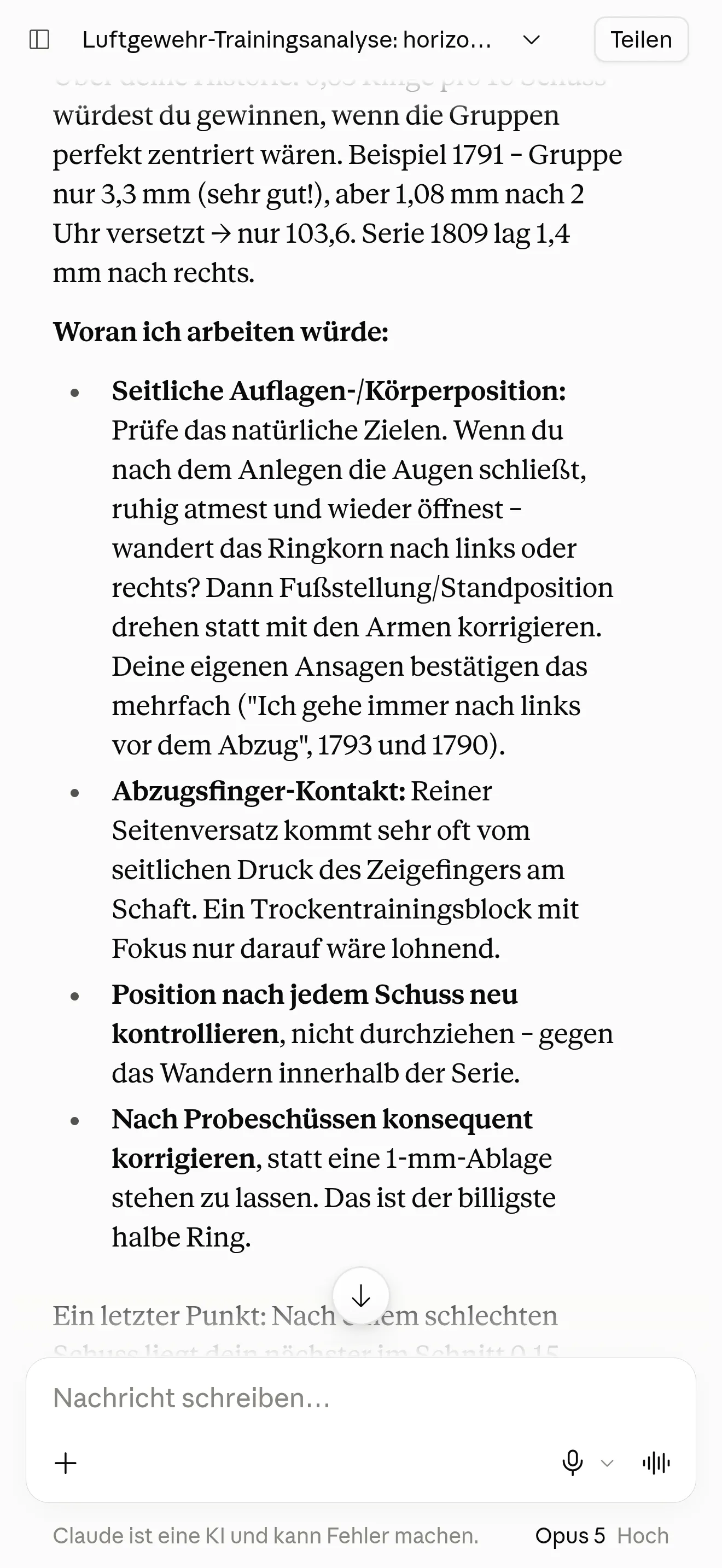
What the AI sees
The connection is read-only. The AI can retrieve your training data — it cannot change, delete or create anything. On request, it receives:
- your session summaries (date, discipline, session type, shot count, total, average, best Teiler),
- individual series with ring value, coordinates and Teiler per shot,
- your session diary for each series (training focus, self-ratings, conditions such as indoor/outdoor, light and temperature),
- computed spread values (group center, spread per axis, Streukreis, within-session drift),
- vetted insights and condition comparisons like those in Statistics,
- your statistics trends and your equipment and discipline profile,
- your series groups (e.g. a league match of four series), your records, your goals and your technique notes,
- for analyses across many series, all your series and shots as a table the AI can crunch itself.
Health data from your session diary — sleep, resting heart rate, HRV, eyes and caffeine — only reaches the AI if you turn on “Share health data” under Settings → AI apps. It starts off, and you can turn it off again at any time.
Privacy in brief
The data flows through your own AI account (Anthropic, OpenAI, …), which you connect yourself. Ring Reader never transmits anything to an AI provider on its own — data is only retrieved when you ask for it in the chat.
Once your training data reaches your AI provider, that provider’s privacy policy governs any further processing. You decide at any time whether the connection stays active (see Disconnecting).
What your AI plan needs to allow
With cloud providers, adding custom MCP servers is usually limited to certain paid plans — ChatGPT, for example, currently doesn’t allow it on Plus, only from Pro or on the business plans. So check in your AI provider’s settings first whether your plan allows custom connectors. If it doesn’t, you can still go without MCP via export.
Connect with Claude (claude.ai / Claude Desktop)
- Open the settings in Claude (claude.ai or Claude Desktop).
- Go to “Connectors”.
- Choose “Add custom connector”.
- Enter the URL:
https://ringreader.app/mcp - Confirm. Claude opens the sign-in: you sign in with your Ring Reader account and confirm on the consent screen that Claude gets read access to your training data.
The connection is then live and Claude can retrieve your data on request.
Connect with ChatGPT
ChatGPT’s exact menu wording changes from time to time — the flow stays the same:
- In ChatGPT, open the settings and then “Connectors”.
- Turn on developer mode if adding custom MCP servers requires it.
- Add a new MCP server and enter the same URL:
https://ringreader.app/mcp - Sign in with your Ring Reader account and confirm read access.
Connect with a local LLM (LM Studio, Ollama …)
You can also connect Ring Reader to a locally running LLM — for example through LM Studio or an MCP-capable interface built on Ollama. The upside: your training data goes to the model on your own machine instead of to a cloud provider.
Ring Reader stays a remote server with sign-in — there is no static API key to paste. So your local tool has to speak MCP with sign-in. The reliable way is the mcp-remote bridge: most local tools launch MCP servers as a local command, and mcp-remote handles the sign-in — it opens your browser once — and forwards the connection to Ring Reader. You need Node.js for it (it ships npx). Add this to your tool’s MCP configuration:
{
  "mcpServers": {
    "ring-reader": {
      "command": "npx",
      "args": ["-y", "mcp-remote", "https://ringreader.app/mcp"]
    }
  }
}
On first launch a browser opens: sign in with your Ring Reader account and confirm read access. The sign-in is cached, so later launches run without prompting.
LM Studio manages MCP servers in its mcp.json file (Program → “Edit mcp.json”, or the Integrations area). Add the block above there. For the exact menu items, see LM Studio’s MCP documentation.
Ollama runs the model but is not an MCP tool itself. You also need an MCP-capable chat interface that uses Ollama as its model, and you connect that interface to Ring Reader with the same mcp-remote block.
If your tool supports remote MCP servers with sign-in on its own, you can enter the URL https://ringreader.app/mcp directly instead of using the bridge.
With a local LLM too: the feature requires Pro, and access stays read-only. What’s local is the model — retrieving the data still goes through your Ring Reader sign-in.
Without MCP: export your data and upload it to the chat
If your AI plan doesn’t allow custom MCP servers, you can still discuss your data with the AI — as a file instead of a live connection:
- In Ring Reader, open Statistics, set the date range and discipline to what you want to discuss, and click “Export CSV” at the bottom (see Exporting statistics). The file has one row per shot with date, ring value and position.
- Attach the CSV file in the AI chat and ask your question — for example: “Give me an overview of my series and tell me where I scatter systematically.”
This works with any chat that accepts file attachments — including ChatGPT Plus. The difference from the MCP connection: the AI only sees the state at the time of the export and can’t fetch anything else. For a new training session, simply export again.
Examples: what you can ask
- “Look at my last 4 training sessions. I have quite a large horizontal deviation. What should I change in my aiming process, and where can I adjust the setup of my weapon?”
- “Compare my supported (Auflage) series from the last few weeks against my own average — am I getting better or worse?”
- “In which direction does my group shift, and does it drift apart toward the end of a series?”
The more specific your question, the better the answer. Feel free to name a date range, a discipline or a particular series — the AI can then retrieve exactly that data.
Disconnecting
You stay in control at all times. Under Settings → AI apps you see every connected AI app and can disconnect each one with a single click. The assistant in question then immediately loses access to your data and would have to sign in again to regain it.